
Publishing your site
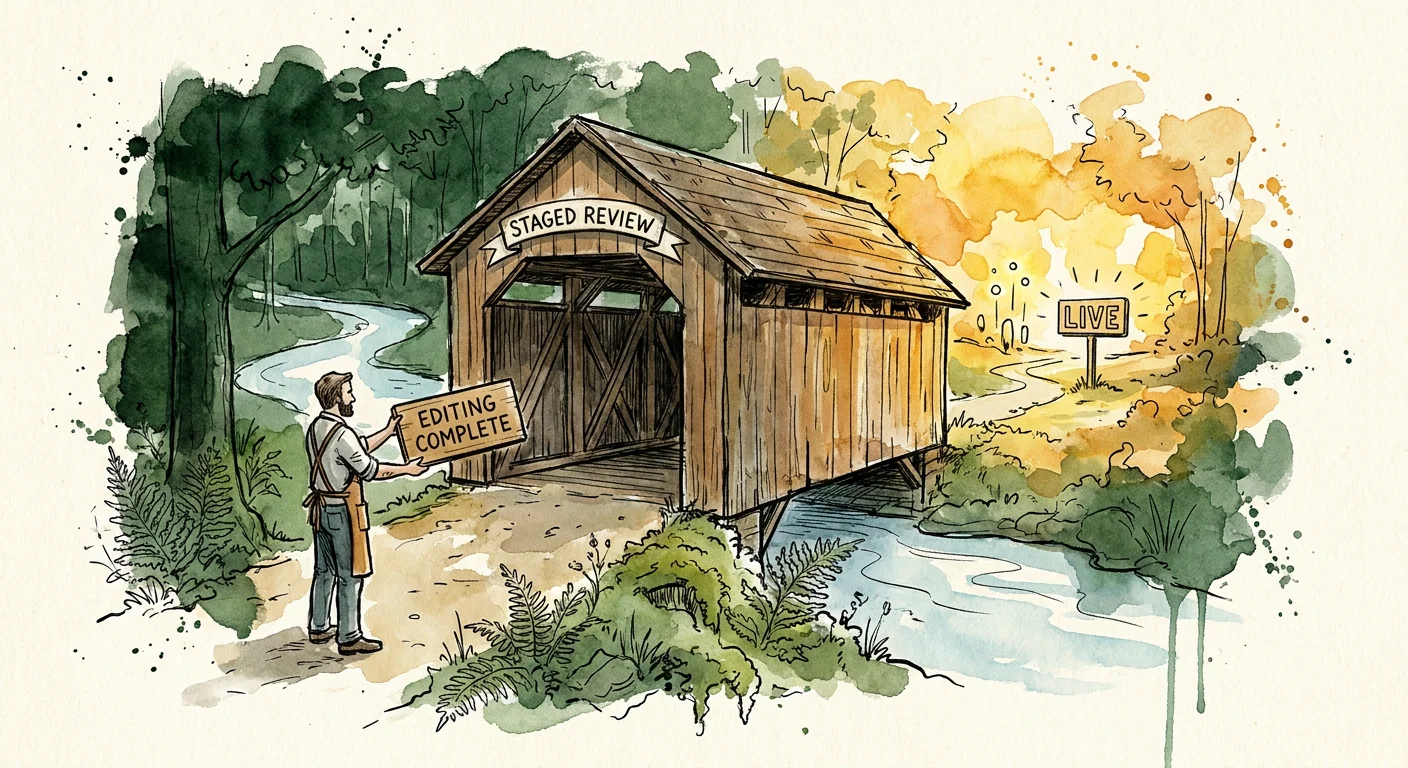
Publishing has three steps, so you can check your changes before anyone else sees them.
Publish your edits in Studio
In Studio, click Review to see everything you changed, describe the changes in a sentence, and click Publish. This saves your work to the editing version of your site. Visitors don't see it yet.
How to review and publish in Studio →
Create a preview
Go back to your project in the dashboard (Projects → Pages → your project). Click Create Preview. When the Preview row of Site status shows Ready, click View Preview to open the preview in a new tab.
Check it the way a visitor would. Click the links, try the forms, and look at it on your phone.
Publish to your live site
If the preview looks right, click Publish in the dashboard. When the Live site row shows Ready, click View Live.
What the dashboard is telling you
The message under the toolbar always names the next step:
| Message | What to do |
|---|---|
| You have new edits that haven't been checked in a preview yet. Click Create Preview to check them before publishing. | You published more changes in Studio after your last preview. Create a new preview. |
| Create a preview first to check your changes before publishing. | Publish stays disabled until your newest Studio changes have a preview. |
| Nothing new to publish — your preview already matches production. | Your live site is already up to date. |
| Your preview looks good — click Publish to make it live. | Ready to go live. |
Page limits and upgrades
Your page count is checked when you click Publish in the dashboard. Your plan's page allowance is shared across all of your Pages projects, so it covers the total number of published pages, not each project separately.
- One page: a Landing Page.
- Two to five pages: the project becomes a Microsite. If your plan's page allowance covers it, there's no extra cost.
- Over your plan's allowance: you'll be asked to upgrade your plan before publishing.
- More than five pages: the project needs Managed Apps. Your content and design carry over as they are.
Only pages count toward your limit. Site settings, form settings, and embed files don't.
Publishing tips
- Batch your changes. You can publish from Studio as many times as you like. Create a preview when a set of changes is ready to check together.
- Unfinished pages go live too. Dashboard Publish releases everything in the preview, including a page you're still building. Finish or delete a page before publishing the site, or make sure nothing links to it yet.
- Check forms after publishing. Form settings take effect on a published site. Send a test submission from the preview or the live site, not from the editor.